
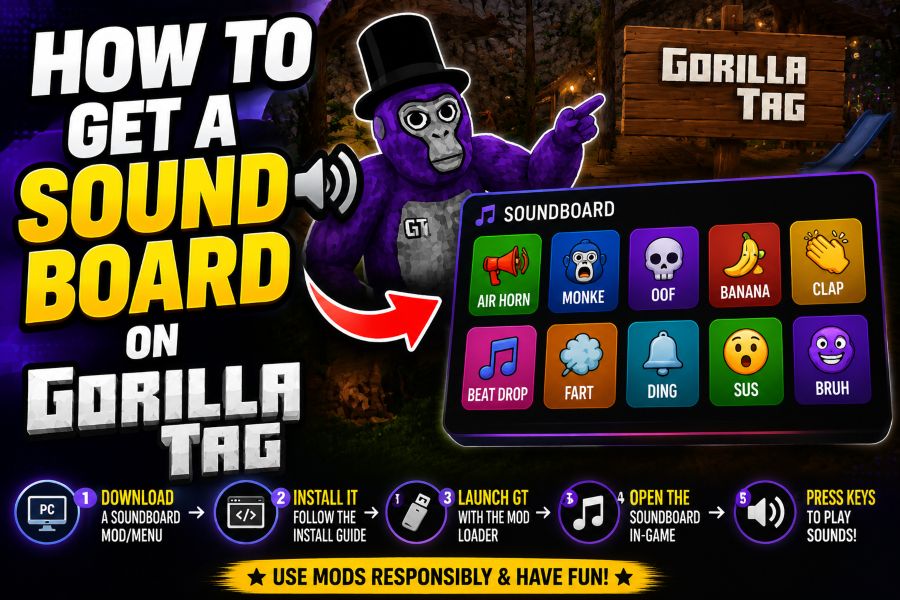
Learning how to get a soundboard on gorilla tag can make private lobbies, casual hangouts, and roleplay sessions more entertaining when it is used respectfully. A soundboard lets you trigger short audio clips through your microphone input, so other players hear them as if they came from your voice chat.
The basic idea is simple: you install a soundboard app, route its audio into a virtual microphone, and select that microphone in your VR or PC audio settings. The exact steps depend on whether you play Gorilla Tag through SteamVR, Meta Quest Link, Air Link, or another PC VR setup.
Before setting anything up, remember that Gorilla Tag is a social game. Loud spam, offensive clips, or constant interruptions can annoy players and may violate platform or community rules.
This guide explains the safe, practical way to set up a soundboard, choose clean audio, test your microphone, and avoid common problems while playing.
A soundboard works by playing audio clips from your computer and sending them through the same channel as your microphone. To do that, most players use a virtual audio cable or a soundboard program with built-in mic routing.
Popular soundboard tools vary, but the setup usually follows the same pattern. You pick your input microphone, choose a virtual output, and then set that virtual device as the microphone used by your VR software.
If you play standalone on Meta Quest without a PC connection, options are more limited. Most reliable soundboard setups require PC VR because the audio routing tools run on Windows.
Good soundboard use is about timing and restraint. Short clips, lower volume, and private lobby testing will help you avoid becoming distracting or disruptive.
You should also avoid clips that include copyrighted music, personal information, harassment, slurs, or anything designed to impersonate moderators. A fun setup is one that other players can enjoy without feeling bothered.
How Do You Set Up a Soundboard?
Choose a Compatible Soundboard App
Start by choosing a soundboard program that can send audio through a microphone input or virtual audio device. Look for basic features such as hotkeys, volume controls, clip trimming, and input selection, because these make it easier to manage sounds while wearing a headset.
Install a Virtual Audio Device
Many setups need a virtual audio cable so your computer can treat soundboard audio like microphone audio. After installing one, restart your computer if required, then check your Windows sound settings to confirm the new input and output devices appear correctly.
Connect Your Real Microphone
Your real headset microphone still matters because you may want to talk normally between clips. In your soundboard software, choose your actual microphone as the main input if the app supports mixing, so both your voice and sound effects can pass through the same virtual microphone.
Route Audio to the Virtual Mic
Set the soundboard output to the virtual audio device, then set that same virtual device as your microphone in Windows, SteamVR, Oculus PC software, or the app you use to launch Gorilla Tag. This routing is what lets other players hear the clips.
Set Hotkeys You Can Reach
Choose simple keyboard hotkeys or controller-friendly shortcuts that you can trigger without leaving the game. Keep the layout small at first, with only a few sounds, so you do not accidentally play the wrong clip during a match or lobby conversation.
Test Before Joining Public Rooms
Open a voice recorder, Discord test call, or Windows microphone test before launching Gorilla Tag. Play a clip and speak normally to confirm the sound is clear, not distorted, and not much louder than your voice.
Adjust Volume and Delay
If your clips are too loud, lower the soundboard volume instead of relying only on in-game voice settings. If clips cut off or lag, close background apps, check audio device settings, and avoid using oversized audio files.
Best Way to Use It Safely
1. Use a soundboard mainly in private rooms or with players who are comfortable hearing sound effects.
2. Keep every clip short, clear, and quiet enough that it does not cover normal voice chat.
3. Avoid using a soundboard to annoy, harass, impersonate, or trick other players.
4. Test your setup outside public lobbies so technical issues do not disrupt other people’s games.
5. Review Gorilla Tag and platform rules regularly because voice chat behavior can affect your account standing.
What You Need Before Starting
- PC VR setup: A soundboard is easiest to use when Gorilla Tag runs through a PC connection such as SteamVR, Quest Link, or Air Link.
- Soundboard software: You need an app that can store clips, assign hotkeys, control volume, and send sound through an audio device.
- Virtual audio cable: This creates a fake microphone path so the game can receive the soundboard audio like normal voice input.
- Working headset mic: A real microphone lets you speak naturally and helps you test whether your voice and clips are balanced.
- Clean audio clips: Short, non-offensive sounds work best because they are easier to understand and less likely to bother other players.
- Volume control: You should be able to lower individual clips or the full soundboard output to prevent painful or distorted audio.
- Private test lobby: Testing with friends first helps you confirm the setup works before entering a public room.
Common Problems and Easy Fixes
Players Cannot Hear the Soundboard
If nobody hears your clips, the wrong microphone is probably selected. Check Windows input settings, SteamVR audio settings, Oculus PC settings, and any in-game voice settings to make sure the virtual microphone is the active input device.
Players Hear Clips but Not Your Voice
This usually means the soundboard audio is routed correctly, but your real microphone is not being mixed into the same output. Open the soundboard settings and look for microphone passthrough, voice mixing, or input monitoring options.
Your Audio Sounds Distorted
Distortion usually comes from volume being too high at one point in the chain. Lower the clip volume inside the soundboard, reduce the virtual output level, and avoid boosting microphone gain unless your voice is genuinely too quiet.
There Is an Echo in Voice Chat
Echo can happen when desktop audio, headset monitoring, and virtual routing overlap. Turn off unnecessary monitoring, avoid routing the game’s audio back into the microphone, and use headphones instead of speakers.
Hotkeys Do Not Work in VR
Some hotkeys fail when the game window is not focused or when another app blocks keyboard input. Try global hotkeys, run the soundboard before launching VR, or choose keys that are not already used by SteamVR or your system.
The Soundboard Adds Delay
Delay can come from heavy audio processing, wireless streaming, or overloaded system resources. Use shorter files, close unused programs, keep your VR connection stable, and test different audio device sample rates if the software allows it.
Standalone Quest Limitations
If you play Gorilla Tag directly on Quest without PC VR, installing a normal Windows soundboard will not affect your headset microphone. In that case, you may need a PC VR setup or external hardware, and you should avoid risky unofficial methods.
Getting a soundboard working in Gorilla Tag is mostly about audio routing. Once your soundboard, virtual microphone, and VR software all point to the right devices, clips should play through voice chat like a normal mic input.
The best setup is simple, quiet, and easy to control. Start with a few short clips, test them privately, and adjust the volume before using them around other players.
Respect matters as much as the technical setup. A soundboard can be funny when it fits the moment, but it quickly becomes a problem if it is loud, repetitive, or used to bother people.
Use it thoughtfully, keep your clips clean, and stay within Gorilla Tag and platform rules so the feature adds fun instead of causing issues.
FAQs About how to get a soundboard on gorilla tag
Can you use a soundboard in Gorilla Tag?
Yes, you can use a soundboard in Gorilla Tag when your audio is routed through a microphone input that the game or VR platform recognizes. The most reliable method is through PC VR with soundboard software and a virtual audio device.
Do you need a PC to use a soundboard in Gorilla Tag?
In most cases, yes. Standalone Quest play does not give you the same audio routing options as Windows, so a PC VR setup is usually needed for a normal software soundboard.
Is using a soundboard bannable in Gorilla Tag?
A soundboard itself is not the main issue; behavior is. Spamming loud clips, harassing players, using offensive audio, or disrupting lobbies may violate Gorilla Tag or platform rules and can put your account at risk.
Why is my soundboard not working in Gorilla Tag?
The most common reason is that the wrong microphone input is selected. Check your Windows, SteamVR, Oculus, and soundboard settings to make sure the virtual microphone is selected everywhere it needs to be.
Can other players hear both my voice and soundboard?
They can if your setup mixes your real microphone with the soundboard output. Look for a microphone passthrough or input mixing option in your soundboard software.
What sounds should I use in Gorilla Tag?
Use short, clean, low-volume sounds that do not interrupt normal play. Avoid copyrighted music, offensive clips, fake moderator messages, and anything designed to annoy or mislead other players.